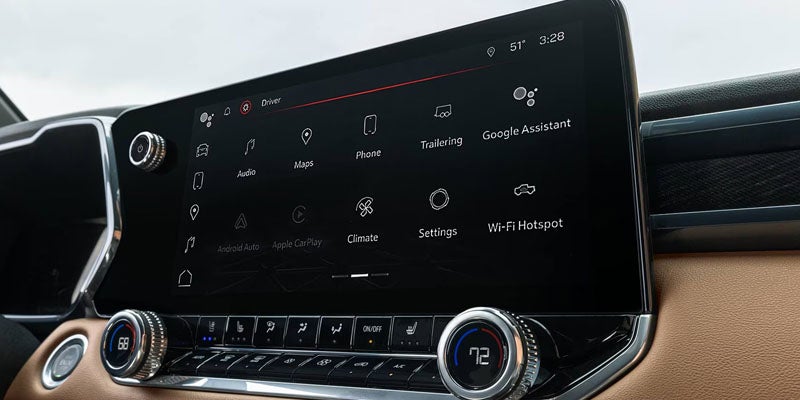





How to Connect Apple CarPlay® in Your Chevrolet Without Fighting the Infotainment System Setting Apple CarPlay® is usually straightforward, although the exact connection method and available features depend on your Chevrolet model and trim. If you're setting up a new vehicle or have simply ignored that Apple CarPlay® button until now, here's how to get everything talking to everything else. No more sitting in silence or listening to radio commercials for the people around Lebanon. First, Make Sure Your Chevrolet and iPhone Can Talk Apple CarPlay® availability varies by Chevrolet vehicle and trim, so compatibility is the first thing to confirm. You'll need an iPhone 5 or newer, while 2024 model-year and newer Chevrolet vehicles require an iPhone running iOS 14 or later. For a wired connection, you'll also need the appropriate USB-A or USB-C cable for your iPhone. Drivers unsure about their vehicle can check Chevrolet technology information or ask the team at Primasing Motors Inc. to verify Apple CarPlay® compatibility by model and trim before spending 20 minutes blaming a perfectly innocent USB cable. Wired Apple CarPlay® Is the Straightforward Method For the initial connection, start the Chevrolet and place it in PARK. Connect your compatible iPhone to the vehicle's USB data port using the appropriate USB-A or USB-C cable, then unlock the phone. Prompts should appear on both the iPhone and the Chevrolet center display asking you to enable Apple CarPlay®. Follow them to complete the connection. If Apple CarPlay® doesn't open automatically after setup, select its icon on the center display. Remember that the vehicle may have multiple USB ports, and the connection needs to use a USB data port rather than assuming every available socket performs the same job. Wireless CarPlay® Removes One Cable from Your Life Select Chevrolet vehicles and compatible iPhones also support wireless Apple CarPlay®. Make sure Bluetooth and Wi-Fi are enabled on the iPhone, then pair or connect it with the vehicle using Bluetooth. Follow the prompts that appear on the iPhone and center display to begin the wireless Apple CarPlay® session. Once the initial pairing is complete and wireless Apple CarPlay® is enabled, some compatible Chevrolet vehicles can reconnect automatically when you start the vehicle with the paired iPhone nearby. Now the Useful Part: Maps, Music, Messages, and Calls Once connected, Apple CarPlay® presents compatible iPhone functions through the center display. Apple Maps and compatible alternatives such as Google Maps can provide navigation, while Apple Music, Spotify, and other supported apps handle entertainment. Compatible messaging and calling functions can also be controlled using Siri. Press the vehicle's Push to Talk button to activate Siri and use supported hands-free functions rather than reaching for the phone. The precise apps and functionality available depend on the vehicle, iPhone, and individual app developer, but the central idea remains the same: keep useful phone functions accessible without making the phone itself the center of your attention. If CarPlay® Refuses to Cooperate, Start with the Simple Stuff When Apple CarPlay® doesn't launch, check the connection before assuming the infotainment system has developed a personal grudge. For wired connections, make sure the cable is securely attached and try the original Apple cable or another high-quality compatible cable. Restarting the iPhone can also resolve connection problems. For wireless Apple CarPlay®, confirm that Bluetooth and Wi-Fi remain enabled and try reconnecting the device. You can also check the Chevrolet infotainment settings to confirm Apple CarPlay® is enabled. Menu locations vary by model. Get Your Chevrolet and iPhone Properly Introduced Apple CarPlay® is considerably better once you've finished setting it up and can simply use it. Primasing Motors Inc. serves Lebanon, OR, drivers who want help understanding Chevrolet and GMC technology, comparing infotainment features, or confirming Apple CarPlay® availability on a specific model or trim. Shoppers can explore new vehicle inventory and compare available technology before choosing a vehicle, while current owners can contact the service department for assistance when an infotainment or connectivity problem requires further attention. If Apple CarPlay® still isn't behaving after the basic troubleshooting steps, schedule a service appointment online.